Lightsaber Rotoscoping
In this procedure I will describe and outline how to take a digital picture of a person and add a special effect called Rotoscoping. It will enhance the light saber. Rotoscope is a term used to describe the editing of images. Usually the images are individual video frames.
It can be thought of as "painting on movies". I will describe the steps to do this using Adobe Photoshop 5.5 and Photoshop Elements.
The first thing you need to do is to secure an image on your computer. This can be achieved by taking a picture of your subject with a digital camera and then transferring it to the computer. You could also take a regular photograph and scan it into the computer. The picture should be of a person holding a toy light saber or any kind of hand held rod.
Once you have the image of the subject on the computer, you would open Adobe Photoshop. Once Photoshop loads, you must click on the "File Menu", then click “Open”. This step could also be achieved by pressing “Ctrl” + “O” on your keyboard. Once the "Open File" dialog box is open, locate your image wherever it is stored on the computer. Click "OK".
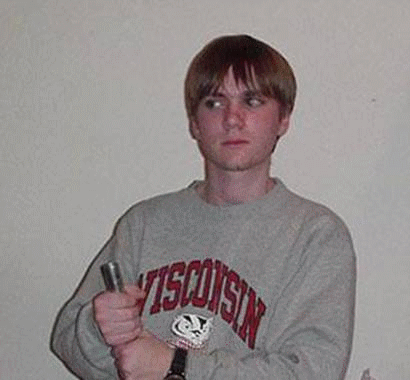
Now that you have opened the image that you want to edit, the next step is to add a new layer on top of it. The image currently has only one layer, which is the background layer. Click on the "Layer Menu", select "New", and then "Layer". You should label this layer, but if you don't the computer will assign it a default name. What we have just was to add a transparent sheet on top of the picture. This will allow us to draw on the image without changing the original picture. It is also where all our editing work will be done. The picture should seem unchanged so far.
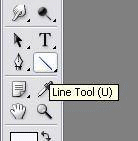
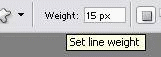
Using the "Line Tool" add a 15 pixel line over where the light saber.
· If you are using Photoshop 5.5 the line must be white.
· If you are using Photoshop Elements the line must be the color the light saber you desire.
The image should now look like the photo shown below.
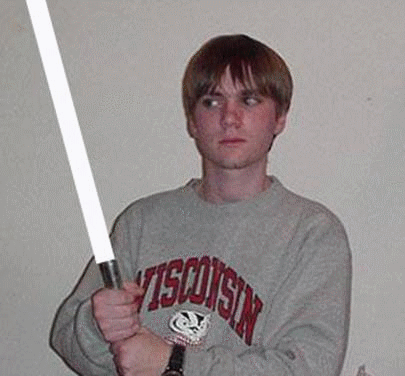
The next thing we need to do is to finish the tip of the blade. An example is shown in the black box below. When you look at the above image, you can see that the blade looks mostly fake and drawn in, but this will change. The next step is to click on the "View Menu", then click "Zoom In". Repeat this until you can see the individual pixels on the tip of the blade. Select a rounded brush and be sure it’s just wide enough to give the tip a rounded edge. You could also zoom down to the other end of the blade to do some touch up work there as well. Your tip should now look rounded like this. Go ahead and zoom back to normal.

The next step is the one that will make the bar line into a realistic looking light saber.
· If you have Adobe Photoshop 5.5, go to the "Layer Menu", click on "Effects", and select "Outer Glow". A small dialog box will pop up titled "Glow Options". Set the "Color" to a shade of blue (personal preference here), "Opacity" to 100%, "Blur" to roughly 20-25 pixels, and "Intensity" to about half (roughly 250 or so). The Blur and Intensity can be adjusted to your personal preference. You'll be able to see the changes happening to the picture behind the dialog box. Basically just play with these settings until the blade looks the way you want it to. Click "OK" and you're done! Your image should look a little something like it does below.
· If you have Adobe Photoshop Elements, go to the "Filter Menu", and select "Blur" then "Gaussian Blur". Drag the slider bar to blur the colored line. Your image will not look very good, yet. The blur should be approximately 5 to 25 pixels. These settings are not set in stone. Basically just play with it until the blade looks way you would like it to. Now you need to add another layer just as we did before. Draw another 15 pixel line in the same place as the first line on the new layer, but this time make the line white. Use the "Gaussian Blur" to blur the white line over the colored one. Your final product should look like it does below.
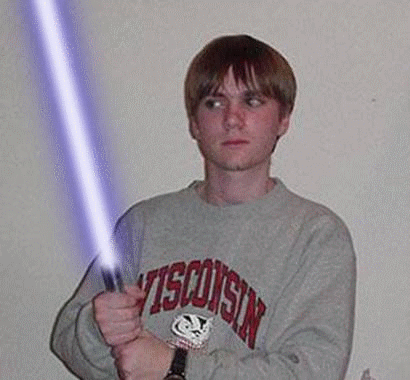
The enhanced image now looks like a real lighted light saber, like you’d see in the movies! As you can see, Rotoscoping is easy enough for even the most novice computer operator to create. Rotoscoped images are used throughout the movie industry, and in many other applications where images are enhanced.