DC Adapter Swap
USB access point was originally powered by a 5V DC wall adapter. You can purchase additional wall and car adapters online for ~$20.
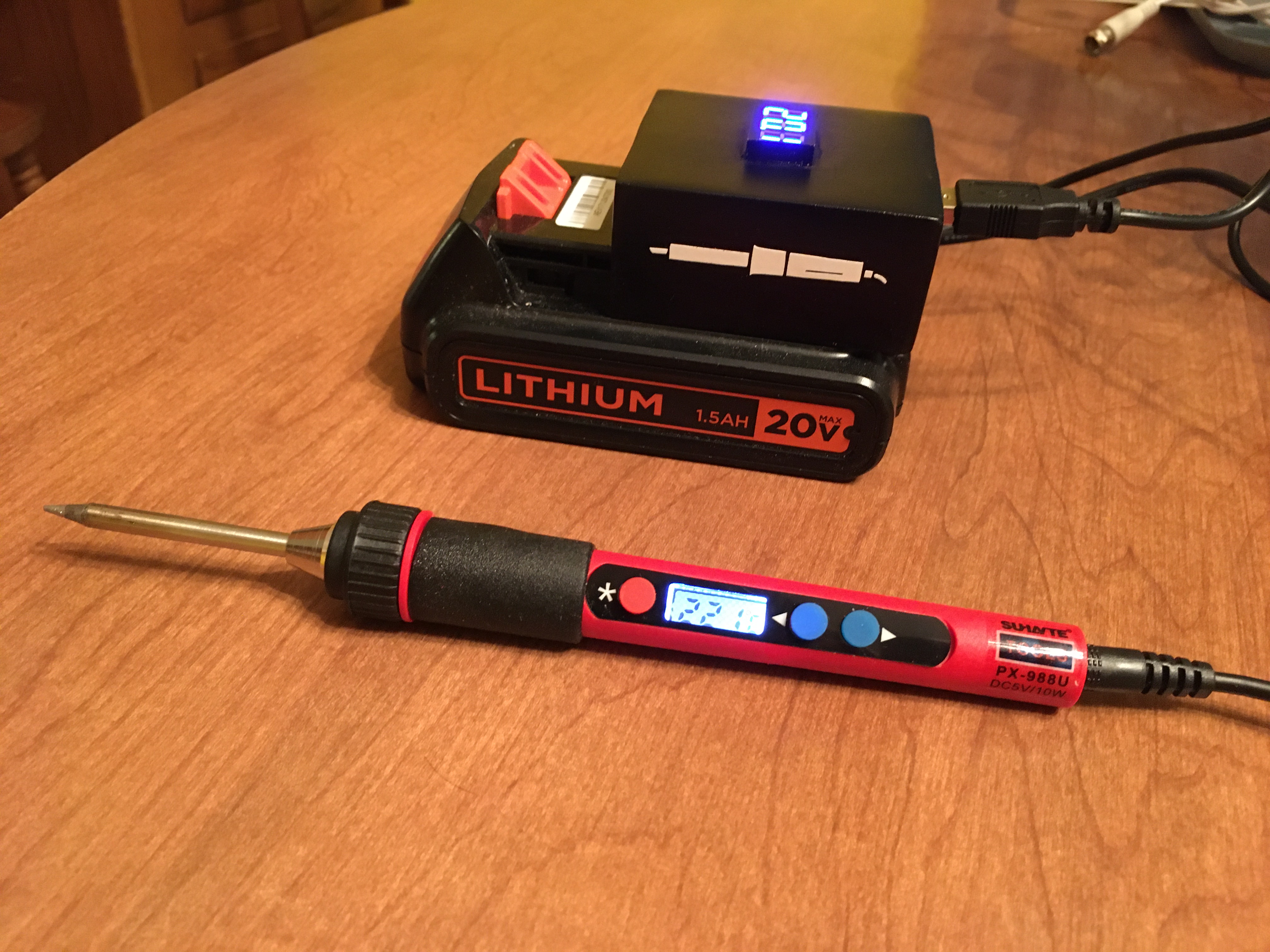
Simple modification allowed me to plug into any USB port for power. Allowing me to use any of my existing USB wall and car adapters. I removed the old DC barrel jack and soldered in a new jack that matches a USB to DC power cable I purchased.
Can purchase the DC jack to USB cable here: SparkFun Item 8639
The DC jack can be purchased here: SparkFun Item 119
Guide: Weapon Counter Display Overlay
Took a lot of trial and error, but I think I came up with a method to make a display overlay that I can be proud of. Thanks for the help James Hodson(jlhR2).
Click More Info for the full guide.
The overlay is meant to go on top of my ammo counters, but also looks good when used alone with a light behind it. The overlay is made of several transparency sheets layered atop one another plus a sheet of tracing paper toact as a diffuser. Could probably substitute tissue paper.
The image files to print out are below. You will need to re-size the images to fit your weapon before printing. If printing at home, be sure to buy transparency sheets meant for ink-jet printing and not laser printing.Ink-jet printable transparency sheets have a rough surface to print onto.
I find my photo printers T-Shirt Transfer mode gives the best print out. It takes some trial and error, but set the Print Quality to high for best results.
Halo Reach


Click Picture to download full size
Halo General Purpose – James Hodson (jlhR2)


Download full size here:http://www.flickr.com/search/?w=40126522@N04&q=display%20overlay
There will be four layers, from bottom to top there is the tracing paper,two black transparencies, and the color transparency.
The tracing paper and the black transparencies need to be cut so the numbercan shine through (xacto knife). If not using an ammo counter circuit, youmay cut in whatever number you like.
DO NOT cut the color layer transparency. This is what colors any light shining through to the proper hue. It also makes photographs when unlit look amazing.
Tip: I first cut a piece of paper the size of the hole I wanted then taped it down so I could have something to trace with the knife.


Below are pictures of building up the different layers. In these photos onlya single layer of black is used. You can see that the light gets through a bit in areas that are supposed to be black. This is why we use two layers ofblack.
Clear tape is used to hold the layers together and keep them aligned.


Have fun~!
DIY Recoil Action
Goal here to add the sensation of recoil to a prop rifle gun. I have seen it done with compressed air and motor pistons, but neither are easily synchronized with electronics and capable of rapid firings for full auto fire. Leaves me with the third option of using a solenoid. To fire a solenoid with enough furiosity to kick the gun into your shoulder involves some serious power requirements.
I did a dry run yesterday and came up with this circuit. The solenoid is rated 12-24V and 3 lbs force. Using the circuit below it was weak at 18V, fully actuated at 27V, and actually had some kick at 36V. I am not sure I want to take it higher.
The next step is to design a circuit to use a lower battery voltage. Three C cells should be sufficient. The 4.5V from the battery would be stepped up and charged across the capacitor. The control circuit would be connected to the solenoid circuit through a optoisolator and a mosfet.
Installing a Light Kit
This is a guide for installing the light kit sold in my store. Click more info for the full guide
Wire the board to the existing battery in your project. The red wire from the battery holder is the positive wire, connect it to the + battery terminal on the AR_Light board. The black wire from the battery holder is the negative wire, connect it to the – terminal on the AR_Light board. Note: To connect an LED the proper way the first time, note on the Light Board that each LED connector is marked + and -. Also note the LED leads, one is long the other is short. The long lead connects to +, the short lead connects to -. If you received clear LEDs in your kit, you must first identify which LED is which color before permanent soldering them to the Light Board. With the Light Board connected to the battery and powered place an LED into one of the LED connectors. Sort the LEDs with the green LEDs in one pile and the red LED in another pile.
Connecting the battery
Wiring the LEDs
There are two ways to connect each LED, but only one is correct. You cannot break anything by connecting an LED backwards. If it doesn’t light up, simply flip it the other way around.Orientation Note
Color Sorting
Wiring Steps
LED Rail Blade Assembly
This guide will walk you through assembling LED strips to place inside an electronic sword prop.
You can use any bare wire you like, but I found that steel craft wire works best (pictured). It is strong, thin, and does not need to be stripped. Take a close look at one of the LEDs. You will notice that at the base of the plastic there is a flat edge. This identifies the red wire. The hardest part of the blade assembly is keeping straight which side is which because all the LEDs must connect the same wire to the same rail. I suggest bending all the wires on the LEDs before you start soldering in such a way that you can easily check which wire is red and which is blue. For me, I bent the positive wire straight down and the two side wires straight out. When I hold the LED with the positive wire facing down and the LED pointing towards me, the red wire will be on the right. Unroll three lengths of about 35-40 inches of wire (we will snip this down later). Use weights and tape on either side to suspend two of the wires. You want to suspend it the approx. length of one dangling LED wire so when it sags from the weight of the LEDs it does not have far to fall. We want the suspended wire tight and remain straight. See the picture below for the spacing between the two wires (a little larger than the width of a LED). Lay a ruler down below the wire. We will use this to align the LEDs and be certain the spacing is consistent. Note: In the picture I am using a tool called “helping hands” to hold my wire. I bought mine from Menards for ~$5. Warm up your solder iron and solder the LEDs to the single rail, but do not snip any of the leads yet. You can start with either the red wire or the blue wire, but we will do the positive wire last. For soldering the last few LEDs to the second rail, I brought the wires down from the suspension. The two rails were too far apart. Before you go onto the positive wire, this is a good time for touch up. The more solder you put on each joint, the “stronger” it is. These blades will probably get knocked around, so we want these joints strong. You can see in the picture the old quick and dirty joints (left) vs the new stronger joints (right). If you are not confident in your creation, you can also test things at this point. The wire unconnected is positive, the two rails are both negative. Use a resister between a 9V battery and the LEDs. BEWARE: At this voltage, one slip of the hand that exposes the LED directly to the battery will destroy the LED. What I do is clip the battery negative to one of the rails then drag the resister across the positive wires, testing each LED in the row. Repeat for the second rail. If something doesn’t light or lights the wrong color, it is easier to fix now than later. Once you are confident, clip off the extra wires on the two rails and prepare to solder the resisters onto the positive wires. If you did a good job, the rails should not be much wider than the LEDs themselves. We need to solder the resisters between the positive wire and the positive rail. The picture shows the steps of soldering the resisters and the positive rail to the structure. Be sure that there is a gap between the positive rail and the positive wire. You can see in the final picture how close they are. If for some reason the blade was squeezed and these two wires touched, the LED would be destroyed. You can either trust the gap or try to seal the gap with hot glue or a piece of clear packing tape (has to be thick enough so it can’t be punctured by the sharp edges). Clip the stray wires (don’t want any shorts) and connect the bottom of the rails to a battery to test. The entire blade will light up red or blue with each connection. The last step is to cut the blades into 5 sections. I am assuming you used 30 LEDs in each blade, so each section will consist of 6 LEDs. Cut the blue wire between each section. ONLY section off the blue wire, the red and positive wires will run the entire length of the blade. You can see in the picture the new gap between the blue rail sections and the shielded wire soldered to the section. Each section will have its own wire. Use the tape or hot glue to bunch the wires and keep them from becoming tangled. Note: The final blade will be pretty flimsy depending on the type of unshielded wire you used for the rails. This allows it to be gently bent into the curve of a blade. After shaping the LED rail to fit your blade interior, wrap in packing tape to strengthen the rail shape.

TOOLS AND MATERIALS
You can use any spacing you like, but you have 60 LEDs for two 30inch blades. A spacing of 1 inch seems appropriate.Test:
It is a good idea to use a marker and label the wires. One dot for the top of the blade, 5 dots for the bottom, 2/3/4 dots for sections between, dash for the positive wire, two dashes for the red wire.Finished:
Animated Light Controller
Using a spare attiny2313 to control some solid state relays. Four channels total, two outlets are always on.
Here is the schematic. The LEDs are mis-routed to the same path as the relay control wires. Turns out the LEDs sap current and don’t allow the relays to trigger properly. Leave the LEDs disconnected and all is well.
CSS, DB, and HTML changes
Blogger.com was a great solution for doing all the backend work of writing articles to the site. They will no longer be supporting me and my ftp using friends. I have migrated to WordPress.
Want more? How about a site flashback? Hit more info for a fun look at my index pages throughout the years. 2010: WordPress Installed *Current
2009: Blogger.com FTP Publishing
2008: CSS Design
2007-2006: Flash menu and ugly frames
2005-1998: No archive pre 2005, but was java based toward the end
Installing an Ammo Counter
This is a small walk through of installing one of my ammo counters available in the store. I am need of pictures, please send me pictures of your install, thanks! :)
For quick start and demonstration of the counter. Connect the battery to the circuit. Use the red and black wires labeled BATT or BATTERY. Connect black to black, red to red.
Note: Before getting started
The FIRE switch has a long lever on it. If you have an existing trigger, use the lever to connect to your existing trigger in such a way that when you pull the trigger, it will also push down on the lever switch. The RESET switch is a square pushbutton. It has a matching round cap. The cap snaps into place on top of the square pushbutton. The ON/OFF switch is a slide switch. It has mounting holes on either side so it may be fastened down. Carefully arrange the different switches and batteries around your gun. Figure out where you want them. If you cut the casing of your gun, leave an opening so you can run the wires through the hole. Next, install the counter and thread the wires to the various locations. Solder the FIRE and RESET switches. As noted previously, these switches only have two connectors. There is no wrong way to connect them to the wire pairs. The only thing you need to be certain of is that the bare wires ends do not touch each other, they should only be connected to the switch connectors.
Tools Required
Pregame:
No need to solder at this point, just twist the wires together and maybe use some tape so the red bare wire doesn’t touch the black bare wire.
The counter should now be on, take the wire pair labeled FIRE and connect these two wires together. Each time you connect them together, the counter will decrease. Do the same thing for RESET.Kit Contents
Install
Step 1 – Identify and place FIRE switch
If you do not have an existing trigger, you may use the lever switch as a trigger itself.Step 2 – Identify RESET switch
Step 3 – Identify ON/OFF switch
Step 4 – Arrange
The on/off switch must be placed between the battery location and the counter location.Step 5 – Wires
If the wires are too long, cut them the proper length and re-strip them.
If the wires are too short, you will need to extend them with more wire. Tape any bare exposed wire ends.Step 6 – Solder On/Off
If you have not already done so, please solder the counter battery wires to the battery. Match red to red and black to black. Cover the bare connections with tape.
Now you may solder in the on/off switch. The on/off switch is to be installed along the red wire between the counter and the battery. Choose a place along the battery wires to install the on/off switch. Cut the red wire and strip it so you can solder the on/off switch in place.
To the right is a drawing of installing the on/off switch.Step 7 – Solder FIRE and RESET
Rockband Stage & Light Kit Mod
Sorry, I do not have full writeup for this project. Here is a photostream of the mod.
Pretty much what I did was take an off the shelf strobe light and swap it for the one built into the fog machine. Re-wired a ps/2 keyboard cable connecting it to the liberated rock band strobe light. Now I can use the strobe light with the game without dragging out the fog machine.
Also added override switches on the fog machine so I could activate both the strobe and fog machine outside the game.