Hi. My name is Dustin Westaby. Here I share my thoughts, project notes, and a small gallery. When I am offline, I hike, read books, and go fishing. Thanks for visiting.
I often get asked about offering sound functionality in my prop kits that I sell. As demonstrated by my energy sword design I had a solution for sound, but it was not a solution that I could extend to my cheaper kits. Sound is hard, not just hard but expensive. Till now.
Introducing the 300 second USB recording module from <a href=”http://www.electronics123.com/300-second-usb-recording-module.html”>electronics123.com</a>. I have fully inregrated their sound module into the Backlit Ammo Counter offered in my store via an adapter circuit. The sound module can also be used stand alone, but you do not need me for that, go buy one from Electronics123! They are good folks.
The need for the Adapter Circuit
The sound quality offered by this sound module hits a sweet spot in cost to performance. In addition, the level of programmability at this price level is unmatched. The only function that cannot be programmed is to switch between two sounds based on a second input. I want to hear the firing sounds only when ammo is available, and the dry fire sounds only when ammo is not available. This is where the adapter circuit comes in. The backlit ammo counter already reports via the bottom LED if ammo is available or not. The adapter circuit takes the signal from that LED and the FIRE switch and performs some logic to decide which sound to play.
Is that simple, now the sound module gives sound effects exactly as expected for a fully automated weapon. Options for semi-automatic are in progress.
Secondary Announcement
New configuration options for the Ammo Counter in the store! Custom rates of fire. Prior to now all Fully-Automatic Ammo Counters have had the same fire rate of 5000 rounds per minute. Which is crazy fast for the most popular selection, the Halo AR having a fire rate of 600rpm.
Luck can be quantified. Each person has a set max amount of luck they can carry with them, and a set flow rate that their luck is replenished.
A person throughout the day uses there luck all the time, without even realizing it. Each time you take a risk, big or small, you use a portion of your luck reserves. Here is where people run into problems. Using too much luck creates a luck deficit, this is the cause of bad luck. A person who presses their luck all the time with a risky lifestyle will find themselves out of luck when they really need it.
Don’t worry too much about you’re own luck deficit. The important thing to remember is too be aware of events in your life and how much luck you are using to accomplish your goals. If you use a lot of luck in any given day, lay your head down low for for awhile. Don’t take any additional risks. Depending on how much luck you used, your luck will be replenished in a few days or weeks.
Another important aspect is that luck can overlap between people and even be shared. This happens because the two people are close emotionally, or sometimes just physical proximity. A person in a luck deficit will attempt to replenish their reserves, this happens naturally, but is sometimes not enough and that person becomes a luck black hole to those around them.
Getting around to finishing my Pip-Boy project, this is my plans and research so far.
Last fall, I purchased a Pip-Boy cast from Skruffy of theRPF. The cast I received from him needed very little sanding to get it to fit together and look right.
I was inspired to go beyond this by another member named pudding of theRPF who posted a video of a functional Pip-Boy he made with an android app and an arduino for the serial interface to the phone.
I think I can go beyond this. Smaller, more functions, and more accuracy. I asked a my buddy to code up a universal pipboy webapp that will function very close to the pipboy in fallout 3, calling it the Pip-Boy emulator. He is very excited to see this prop in action!
I’ve seen a few demos of his progress, looks good so far. He assures me that the sound effects / animations I want won’t be a problem.
Then on my side is the hardware. I figure the interface between the controls and the ipod will be a mini bluetooth keyboard. The app will support keyboard input so keypresses will be used to navigate the Pip-Boy.
The last piece of the puzzle is the controls on the face of the Pip-Boy that will be wired into the bluetooth keyboard. There are three input sets on the face controls; the Wheel which moves up-down through the menus, the Knob which moves left-right through the menus, and the front Lights which switches menu areas (STATS, INFO, DATA).
The Wheel and Knob will be a incremental rotary encoders. Rotary encoders have 3 pins; the common pin, the A pin, and B pin. Example: For the Wheel, the common and A pin will be connected to the UP keyboard key, the common and B pin will be connected to the DOWN keyboard key. The when you spin the Wheel clockwise, a pulse train will be input into the UP key, resulting in the UP key being pressed over and over as you spin the Wheel in an upward motion. Conversely, spinning the Wheel counter clockwise will send a pulse train input to the DOWN key, resulting in the DOWN key being pressed over and over as you spin the Wheel in a downward motion.
The Knob will be connected similar, but for LEFT and RIGHT.
Finally, is the three front LEDs. Each of these will be an illuminated yellow LED switch wired into the keyboard’s A, B, C keys. In order to get each LED to light up when it is selected an Attiny chip will be used. An Attiny chip has six I/O pins, perfect for this purpose. Three of the pins will be an input, connected in parallel with the keyboard wiring. Then three of the pins will be an output, turning the LEDs on and off.
There are a couple of ways to turn those LEDs on and off but the Attiny is a very small chip, DIP8, and inexpensive, ~$2. Makes it an ideal solution.
As an extra, I noticed that in the game the radmeter window (upper right corner of the pipboy face) has a clock hand that spins continuously. I have a few micro motors and can see this being easy to implement. Yellow glowing background, slow spinning clock hand.
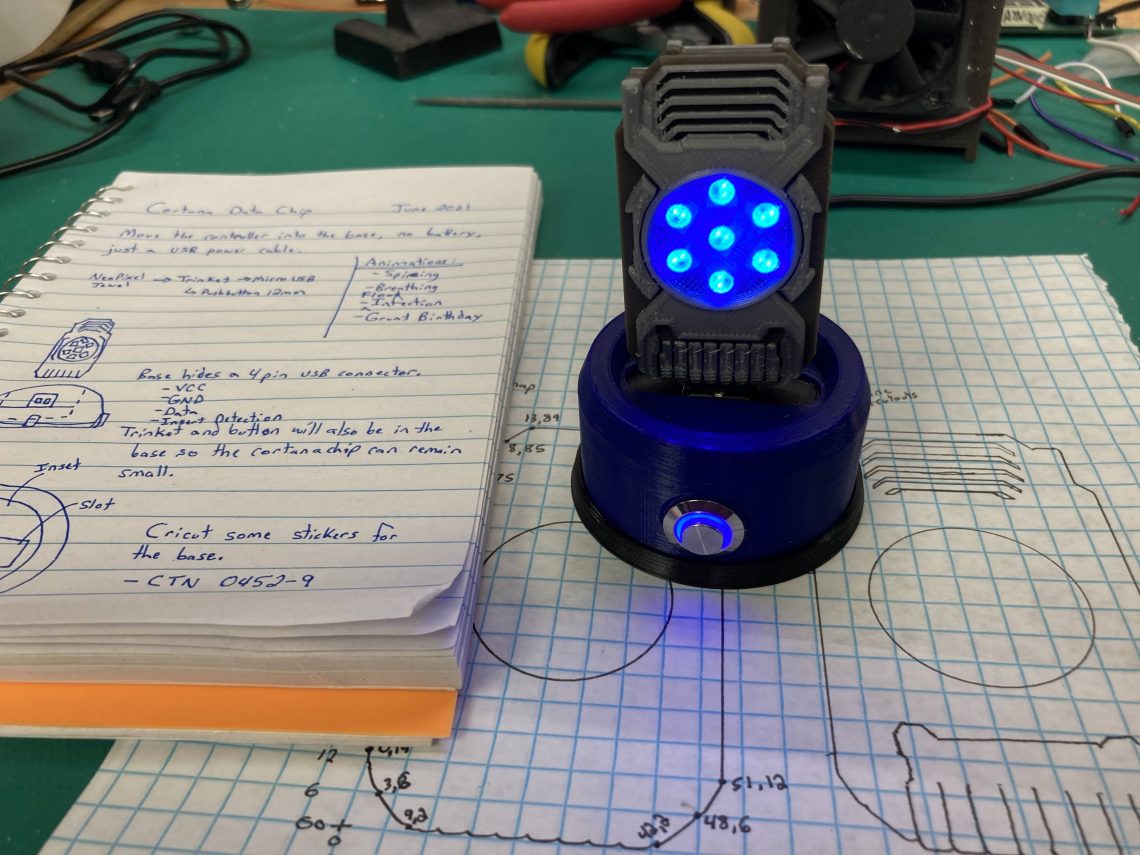
Project is a cortana prop. Partnered with James Hodson and friends to complete. My portion is complete. Have a circuit board here that is the size and shape of the Halo Data Crystal (the thing that can contain an AI such as Cortana).
Working hard on the next stage of the project: Make a plastic shell that houses the circuit and a battery (team jlhR2). Link to post: [405th Forum]
Video demo of using the cortana chip as a switch
04-18-2011
PCB order is in, could mass produce a few right now if I wanted. Link to post: [405th Forum]
04-06-2011
First prototype is fully assembled, ready to proceed to stage 3 on the schedule. Link to post: [405th Forum]
03-22-2011
A nice explanation of all that the cortana board can do. Link to post: [405th Forum]
03-21-2011
First few revisions of the circuit board have been assembled and tested. Slot connector works great~! I ran out of those tiny smd LEDs and ordered some more. Will get one completely assembled later this week. Link to post: [405th Forum]
Bringing in the latest pictures and videos to page 1.
02-03-2011
I am still working on a final draft of the main board design, but here is the gist of what it will do and look like: First, the size is tiny. The thing is as small as the real deal, 1.00×1.85 inches (25×47 mm).
JlhR2 and I are still working on a pep template / mold that will go over the top.
USB access point was originally powered by a 5V DC wall adapter. You can purchase additional wall and car adapters online for ~$20.
Simple modification allowed me to plug into any USB port for power. Allowing me to use any of my existing USB wall and car adapters. I removed the old DC barrel jack and soldered in a new jack that matches a USB to DC power cable I purchased.
Took a lot of trial and error, but I think I came up with a method to make a display overlay that I can be proud of. Thanks for the help James Hodson(jlhR2).
Click More Info for the full guide.
The overlay is meant to go on top of my ammo counters, but also looks good when used alone with a light behind it. The overlay is made of several transparency sheets layered atop one another plus a sheet of tracing paper toact as a diffuser. Could probably substitute tissue paper.
The image files to print out are below. You will need to re-size the images to fit your weapon before printing. If printing at home, be sure to buy transparency sheets meant for ink-jet printing and not laser printing.Ink-jet printable transparency sheets have a rough surface to print onto.
I find my photo printers T-Shirt Transfer mode gives the best print out. It takes some trial and error, but set the Print Quality to high for best results.
There will be four layers, from bottom to top there is the tracing paper,two black transparencies, and the color transparency.
The tracing paper and the black transparencies need to be cut so the numbercan shine through (xacto knife). If not using an ammo counter circuit, youmay cut in whatever number you like.
DO NOT cut the color layer transparency. This is what colors any light shining through to the proper hue. It also makes photographs when unlit look amazing.
Tip: I first cut a piece of paper the size of the hole I wanted then taped it down so I could have something to trace with the knife.
Below are pictures of building up the different layers. In these photos onlya single layer of black is used. You can see that the light gets through a bit in areas that are supposed to be black. This is why we use two layers ofblack.
Clear tape is used to hold the layers together and keep them aligned.
Goal here to add the sensation of recoil to a prop rifle gun. I have seen it done with compressed air and motor pistons, but neither are easily synchronized with electronics and capable of rapid firings for full auto fire. Leaves me with the third option of using a solenoid. To fire a solenoid with enough furiosity to kick the gun into your shoulder involves some serious power requirements.
I did a dry run yesterday and came up with this circuit. The solenoid is rated 12-24V and 3 lbs force. Using the circuit below it was weak at 18V, fully actuated at 27V, and actually had some kick at 36V. I am not sure I want to take it higher.
The next step is to design a circuit to use a lower battery voltage. Three C cells should be sufficient. The 4.5V from the battery would be stepped up and charged across the capacitor. The control circuit would be connected to the solenoid circuit through a optoisolator and a mosfet.
This is a guide for installing the light kit sold in my store. Click more info for the full guide
Connecting the battery
Wire the board to the existing battery in your project. The red wire from the battery holder is the positive wire, connect it to the + battery terminal on the AR_Light board. The black wire from the battery holder is the negative wire, connect it to the – terminal on the AR_Light board.
Wiring the LEDs
Note: There are two ways to connect each LED, but only one is correct. You cannot break anything by connecting an LED backwards. If it doesn’t light up, simply flip it the other way around.
Orientation Note
To connect an LED the proper way the first time, note on the Light Board that each LED connector is marked + and -. Also note the LED leads, one is long the other is short. The long lead connects to +, the short lead connects to -.
Color Sorting
If you received clear LEDs in your kit, you must first identify which LED is which color before permanent soldering them to the Light Board. With the Light Board connected to the battery and powered place an LED into one of the LED connectors. Sort the LEDs with the green LEDs in one pile and the red LED in another pile.
Wiring Steps
Using a soldering iron, solder all of the LEDs to wire pairs. Use the above picture for reference.
Next, connect one of the wire pairs to its corresponding LED connector (see orientation note). After you have determined the correct orientation (it lights), solder it permanently into place.
Repeat step 2 with the remaining LEDs.
Use heat shrink tubing or electrical tape over any bare wires to keep leads separated and protected.
This guide will walk you through assembling LED strips to place inside an electronic sword prop.
TOOLS AND MATERIALS
Spool of unshielded bare wire
Few feet of shielded wire
Solder Iron
Solder (0.5 oz is plenty)
Wire Snips
Needle Nose Pliers (optional)
Hot Glue or Clear Packing Tape
Safety Glasses
You can use any bare wire you like, but I found that steel craft wire works best (pictured). It is strong, thin, and does not need to be stripped.
Take a close look at one of the LEDs. You will notice that at the base of the plastic there is a flat edge. This identifies the red wire.
The hardest part of the blade assembly is keeping straight which side is which because all the LEDs must connect the same wire to the same rail. I suggest bending all the wires on the LEDs before you start soldering in such a way that you can easily check which wire is red and which is blue. For me, I bent the positive wire straight down and the two side wires straight out. When I hold the LED with the positive wire facing down and the LED pointing towards me, the red wire will be on the right.
Unroll three lengths of about 35-40 inches of wire (we will snip this down later). Use weights and tape on either side to suspend two of the wires. You want to suspend it the approx. length of one dangling LED wire so when it sags from the weight of the LEDs it does not have far to fall. We want the suspended wire tight and remain straight. See the picture below for the spacing between the two wires (a little larger than the width of a LED).
Lay a ruler down below the wire. We will use this to align the LEDs and be certain the spacing is consistent.
Note: You can use any spacing you like, but you have 60 LEDs for two 30inch blades. A spacing of 1 inch seems appropriate.
In the picture I am using a tool called “helping hands” to hold my wire. I bought mine from Menards for ~$5.
Warm up your solder iron and solder the LEDs to the single rail, but do not snip any of the leads yet. You can start with either the red wire or the blue wire, but we will do the positive wire last.
For soldering the last few LEDs to the second rail, I brought the wires down from the suspension. The two rails were too far apart.
Before you go onto the positive wire, this is a good time for touch up. The more solder you put on each joint, the “stronger” it is. These blades will probably get knocked around, so we want these joints strong. You can see in the picture the old quick and dirty joints (left) vs the new stronger joints (right).
Test:
If you are not confident in your creation, you can also test things at this point. The wire unconnected is positive, the two rails are both negative. Use a resister between a 9V battery and the LEDs. BEWARE: At this voltage, one slip of the hand that exposes the LED directly to the battery will destroy the LED.
What I do is clip the battery negative to one of the rails then drag the resister across the positive wires, testing each LED in the row. Repeat for the second rail. If something doesn’t light or lights the wrong color, it is easier to fix now than later.
Once you are confident, clip off the extra wires on the two rails and prepare to solder the resisters onto the positive wires. If you did a good job, the rails should not be much wider than the LEDs themselves.
We need to solder the resisters between the positive wire and the positive rail. The picture shows the steps of soldering the resisters and the positive rail to the structure.
Be sure that there is a gap between the positive rail and the positive wire. You can see in the final picture how close they are. If for some reason the blade was squeezed and these two wires touched, the LED would be destroyed.
You can either trust the gap or try to seal the gap with hot glue or a piece of clear packing tape (has to be thick enough so it can’t be punctured by the sharp edges).
Clip the stray wires (don’t want any shorts) and connect the bottom of the rails to a battery to test. The entire blade will light up red or blue with each connection.
The last step is to cut the blades into 5 sections. I am assuming you used 30 LEDs in each blade, so each section will consist of 6 LEDs. Cut the blue wire between each section.
ONLY section off the blue wire, the red and positive wires will run the entire length of the blade.
You can see in the picture the new gap between the blue rail sections and the shielded wire soldered to the section. Each section will have its own wire.
Use the tape or hot glue to bunch the wires and keep them from becoming tangled.
Note: It is a good idea to use a marker and label the wires. One dot for the top of the blade, 5 dots for the bottom, 2/3/4 dots for sections between, dash for the positive wire, two dashes for the red wire.
The final blade will be pretty flimsy depending on the type of unshielded wire you used for the rails. This allows it to be gently bent into the curve of a blade. After shaping the LED rail to fit your blade interior, wrap in packing tape to strengthen the rail shape.